Free preview · version 0.4
AI Lab · Remote help for Windows
DeskMirror
View and control Windows PCs remotely — directly connected, with no relay server, and only once the person at the remote PC starts sharing.
- Free — Free download, no account, no subscription.
- Direct connection — Server and remote PC connect with encryption, with no third-party server in between.
- Shared on site — Sharing on the remote PC starts and stops only with a click there.
The concept
One fixed server, as many shared PCs as you need
DeskMirror connects a server at your fixed workstation with remote PCs that are explicitly shared. That lets you help family, friends or a small team right on their screen. The new interface guides you through setup, and in everyday use “My PCs” shows all configured computers with their connection status.
SERVER
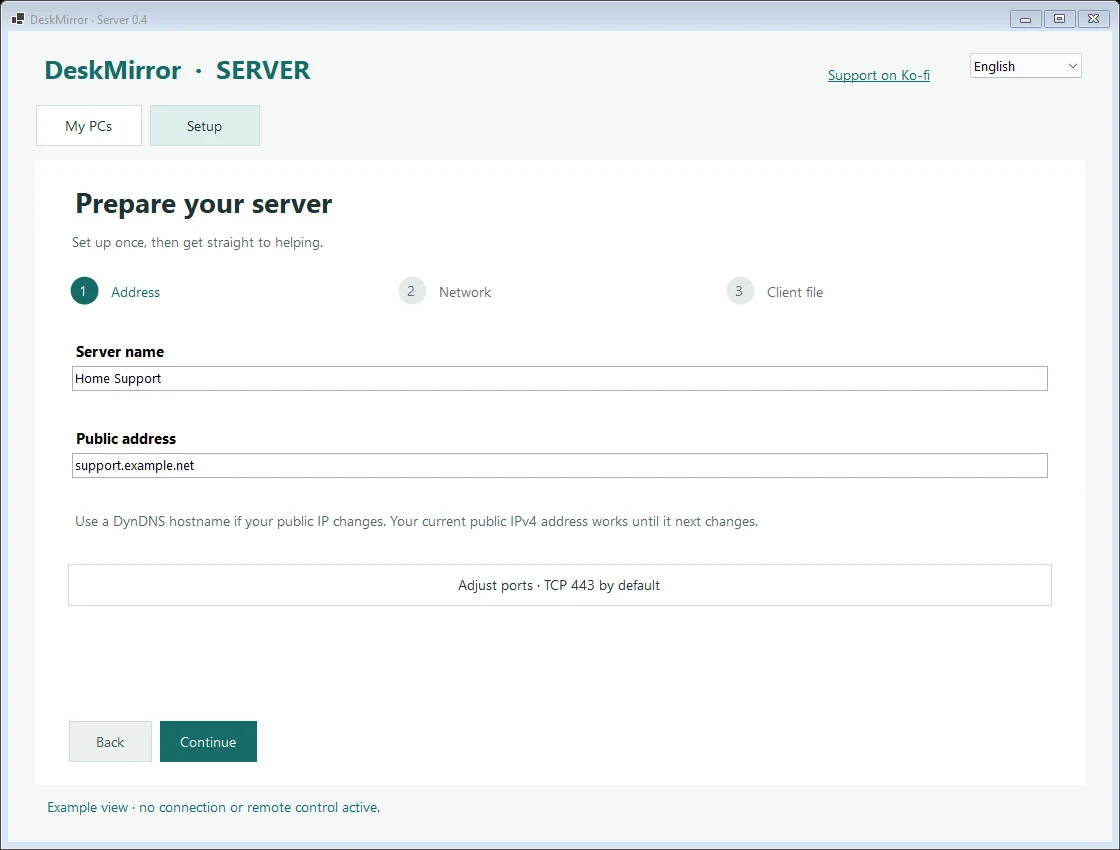
Set up once, help directly later
The wizard guides you through address, network and client file in three steps.
Address and network
Enter a public IPv4 or DynDNS hostname and follow the router and firewall instructions. External TCP 443 is typical.
One client file per PC
Every remote PC gets its own file with an individual access key. Send it separately and securely.
Test reachability
Starting the server only confirms that it is listening locally. Test external reachability from another network.
REMOTE PC
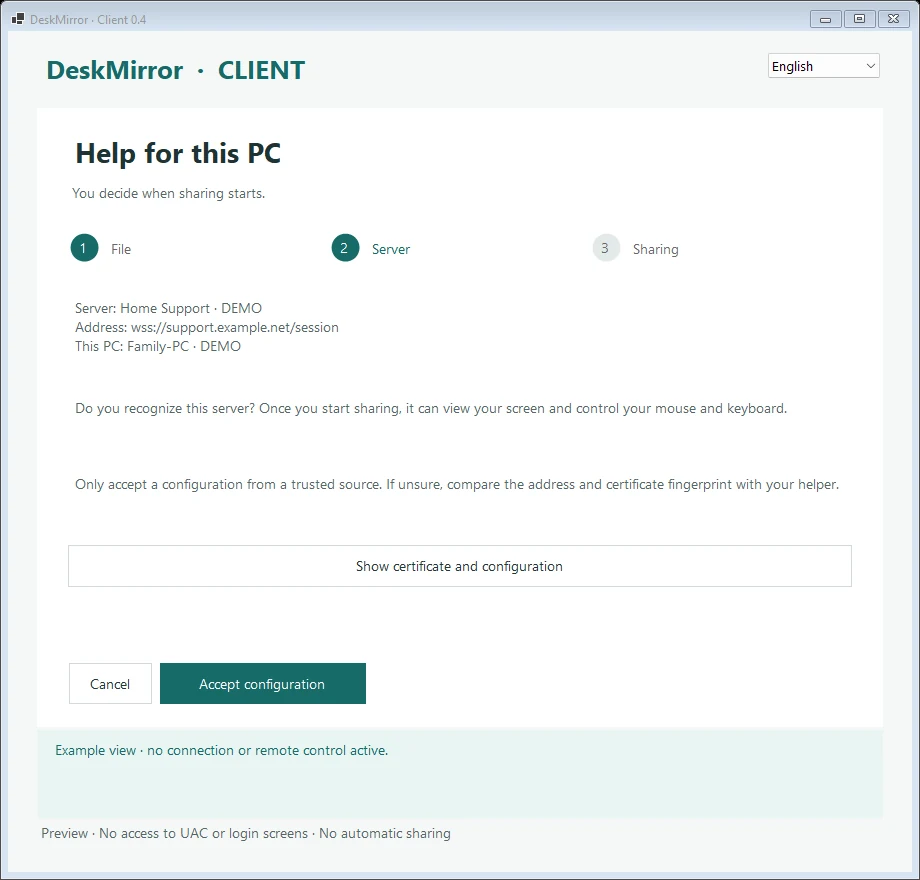
The person on site decides
On the remote PC, a separate wizard guides through file, server and sharing.
Check first, then accept
Name, address and certificate fingerprint of the server are visible before you accept. Cancel keeps the previous connection.
Sharing takes a click
Choose a screen and click “Start sharing”. Even after a restart, sharing only begins with an explicit click.
No port forwarding needed
Nothing has to be configured on the remote PC’s router.
MY PCS
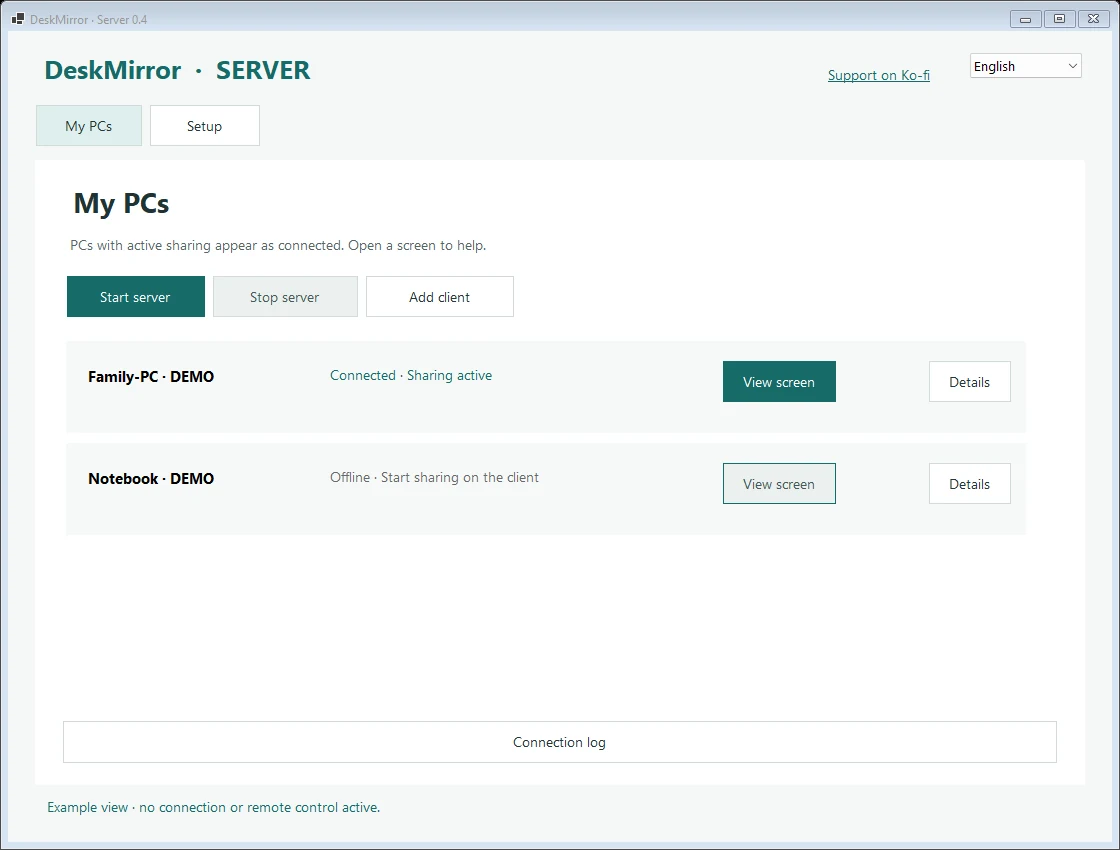
All computers at a glance
The overview shows connected, offline and revoked access.
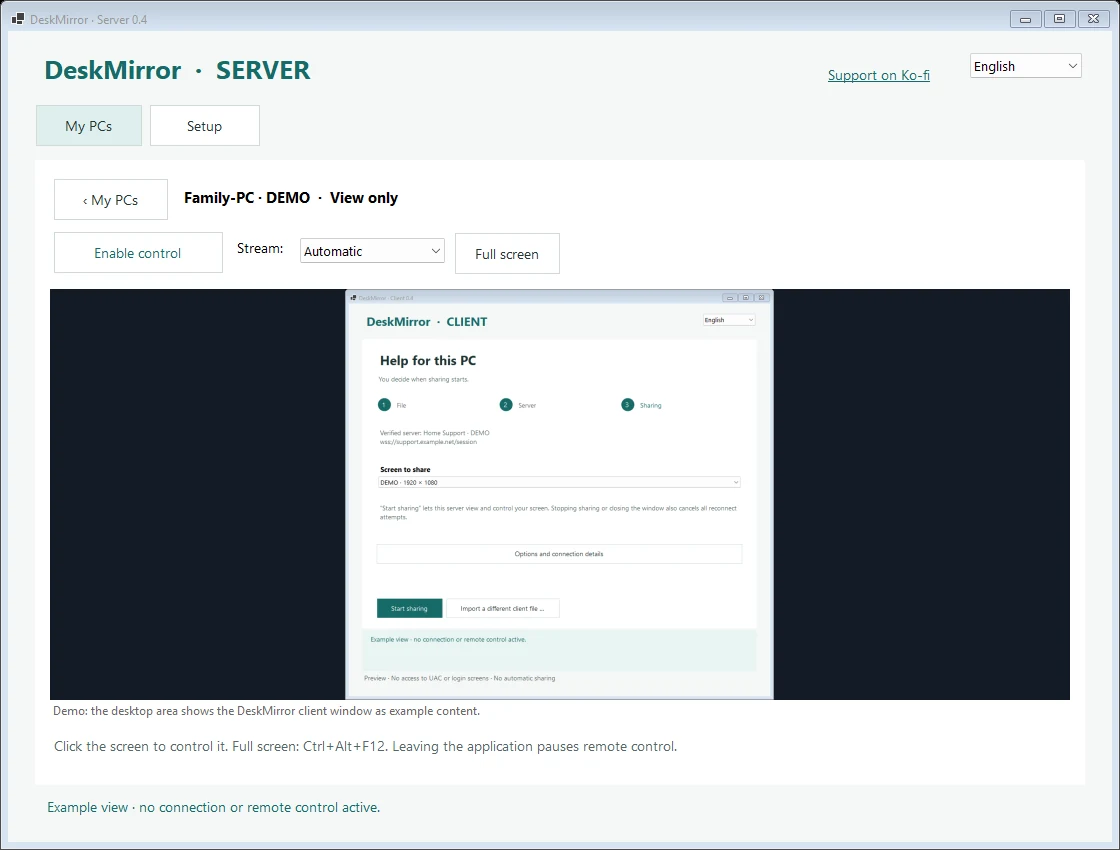
View screen
A connected PC is ready for help. The session starts without active control.
Add more PCs
“Add client” opens the export step for another computer.
Manage access
Use “Details” to export an access again or revoke it. Older files cannot replace newer ones.
REMOTE CONTROL
View, control, pause
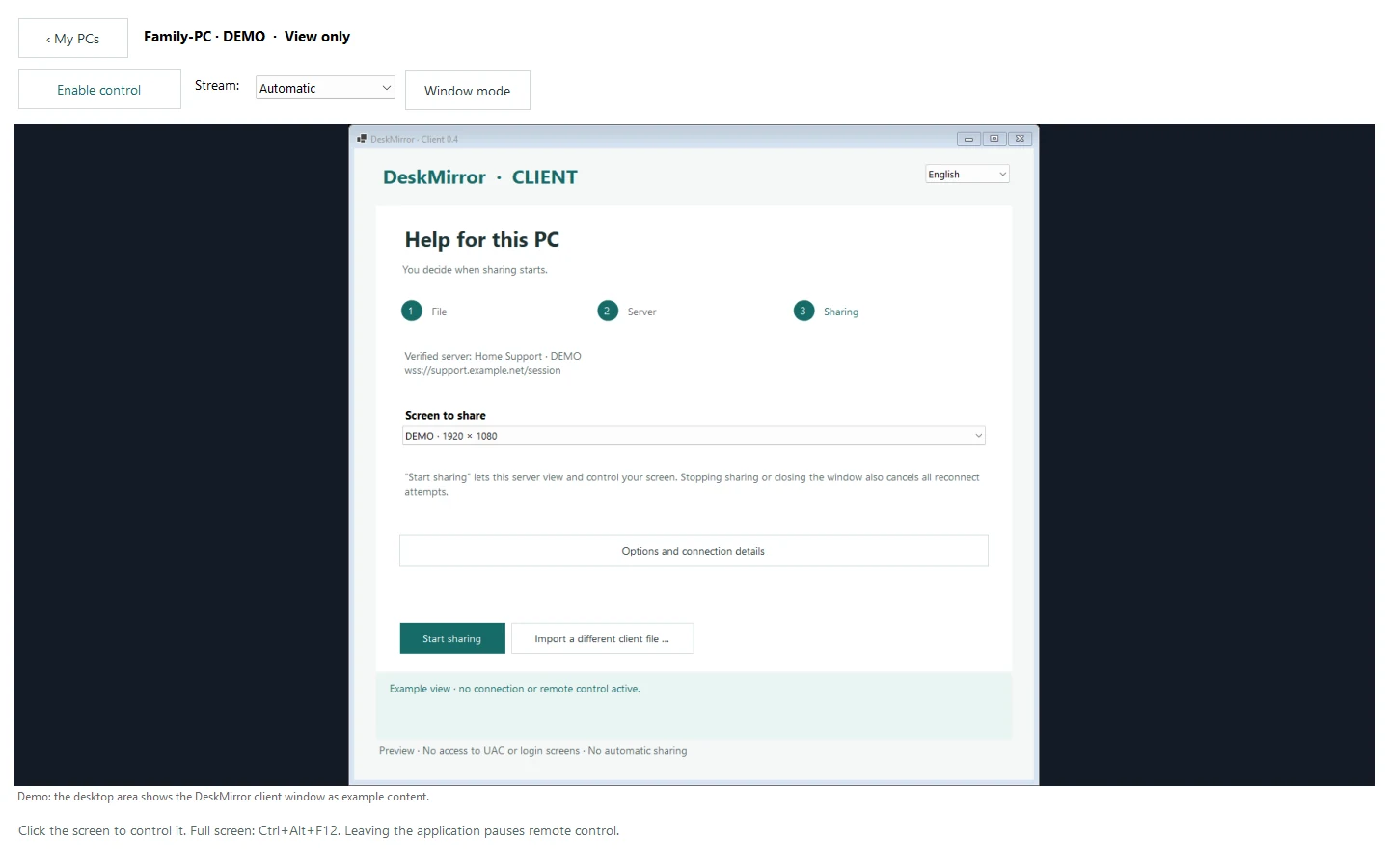
Control is a deliberate second step, not the default.
View only first
“Enable control” turns on mouse and keyboard, “Pause control” turns them off. Switching to another application pauses control automatically.
Window or full screen
“Full screen” or Ctrl+Alt+F12 switches views. Escape and F11 remain available to the remote PC.
Adaptive image
Only changed areas are transmitted. Quality adapts automatically, and image profiles are selectable.
How it works
Remote help in three steps
01
Prepare the server
Extract the server ZIP on the controlling PC, run DeskMirror-Server.exe and follow the wizard. Export a client file for each remote PC and choose “Start server”.
02
Share the remote PC
Extract the client ZIP, run DeskMirror-Client.exe, choose the client file you received, check the server and accept the configuration. Then choose a screen and click “Start sharing”.
03
Help and finish
On the server, choose “View screen” under “My PCs” and enable control if needed. The remote PC can end the session at any time with “Stop sharing”.
Features
Secure and clear
Encrypted direct connection
With a pinned server certificate fingerprint.
Individual key per client
Every remote PC gets its own access key, which can be revoked individually.
Visible stop button
“Stop sharing” or closing the window ends the connection and all reconnect attempts.
Screen selection
With multiple monitors, the remote PC chooses which one is shared.
German and English
Both applications can switch languages while in use.
No installation
Extract and run. The required .NET runtime is included.
Downloads
Separate downloads for both PCs
Server · version 0.4.3
Server for the PC you help from
For the fixed workstation with a reachable address. Includes the setup wizard, “My PCs” and the screen view.
Client · version 0.4
Client for the PC that gets help
For the remote PC. Also needs the individual client file from the respective server.
Both archives for Windows 11 x64 include German and English, relevant instructions and the required .NET runtime. No installation is needed after extraction.
The client file with the access credentials must never be part of a public download. It is exported by the server and shared separately.
Updating from an earlier version: close both applications and replace them. Existing DeskMirror data remains available under the same Windows account. Update firewall rules tied to the executable location if needed.
Before you start
Requirements and limitations
Requirements
- The server needs a reachable public IPv4, port forwarding on the router and a firewall rule.
- DynDNS helps with changing public IPs but does not open ports.
- Ordinary port forwarding is not enough with DS-Lite or CGNAT.
- Networks blocking WebSockets or using special proxies may prevent connections.
Preview limitations
- No background service and no automatic access after restarting Windows.
- UAC prompts, elevated administrator windows and the Windows sign-in screen cannot be controlled reliably. Confirm such prompts on site.
- File transfer, shared clipboard and audio are not included.
- The applications are unsigned and have not undergone an independent security audit. Windows may warn at launch.
Screenshots
DeskMirror at a glance
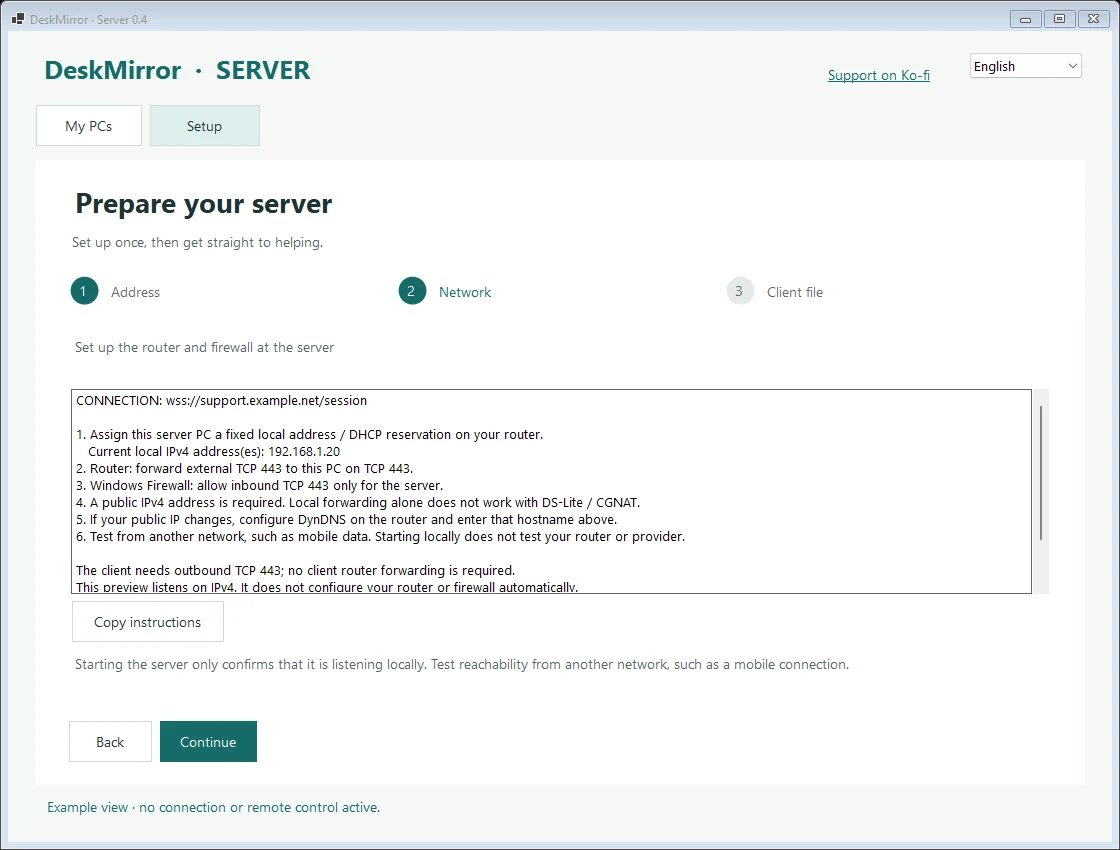
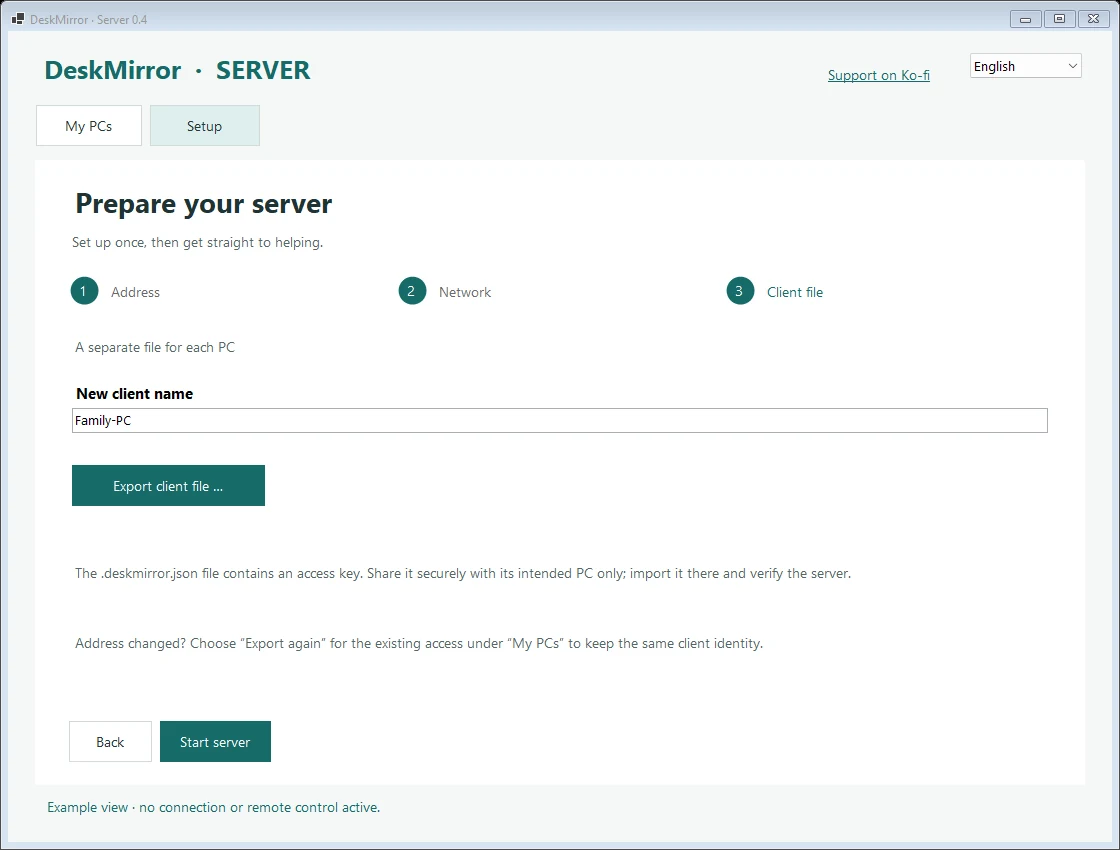
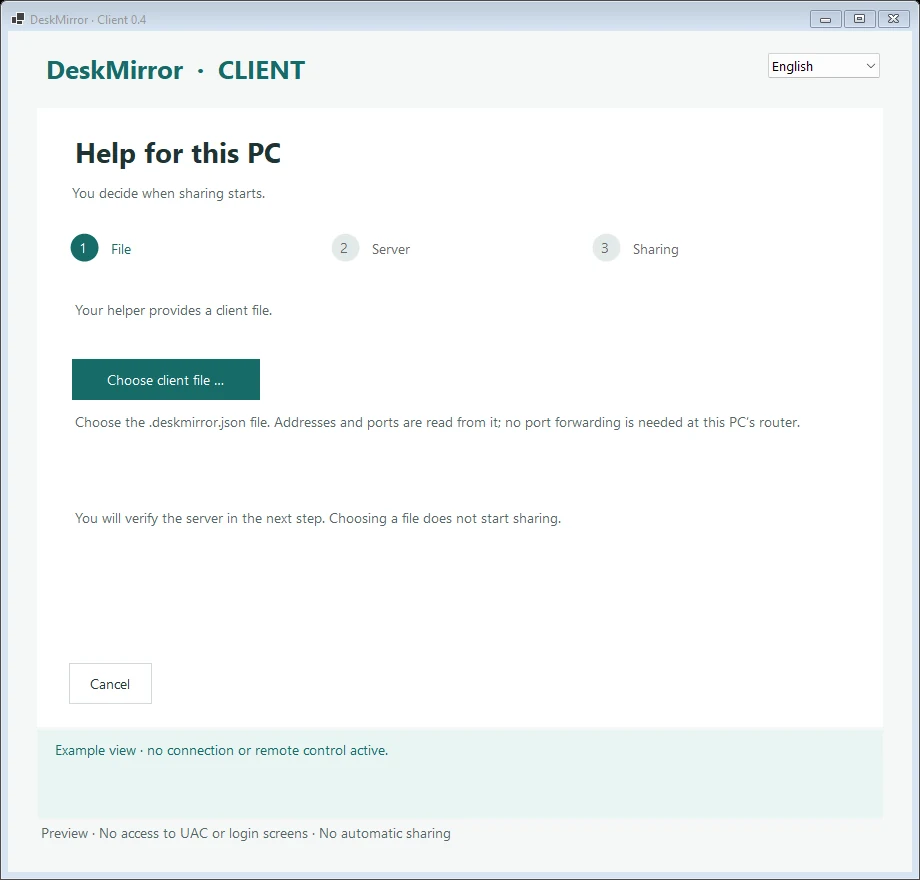
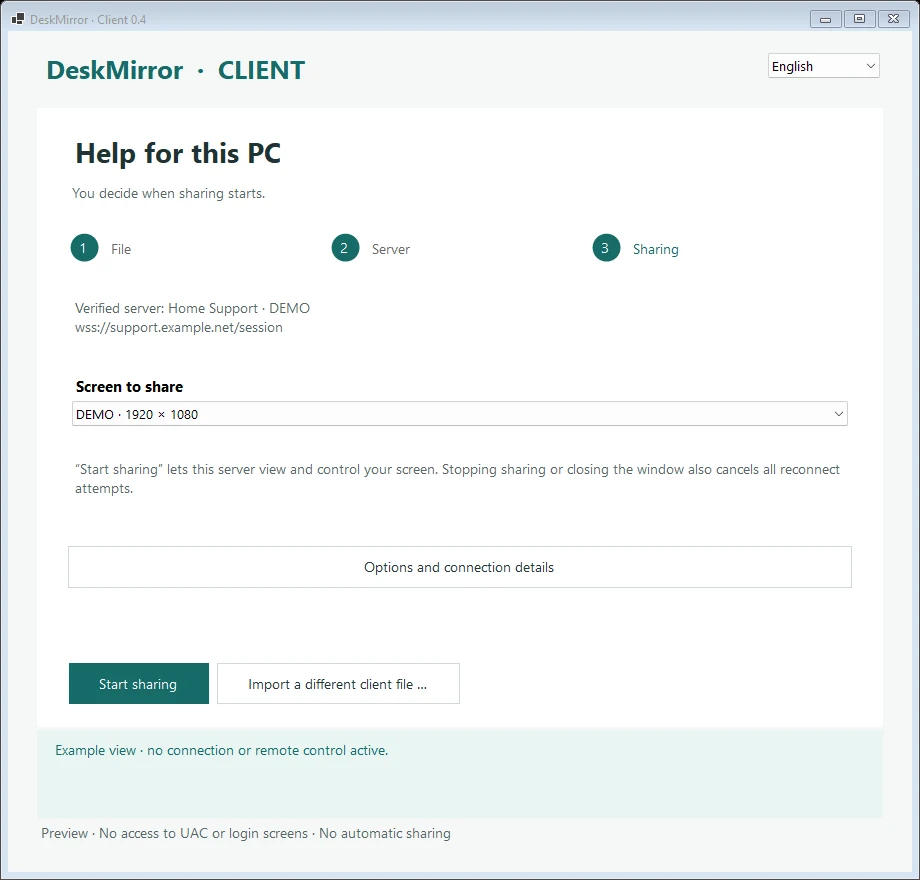
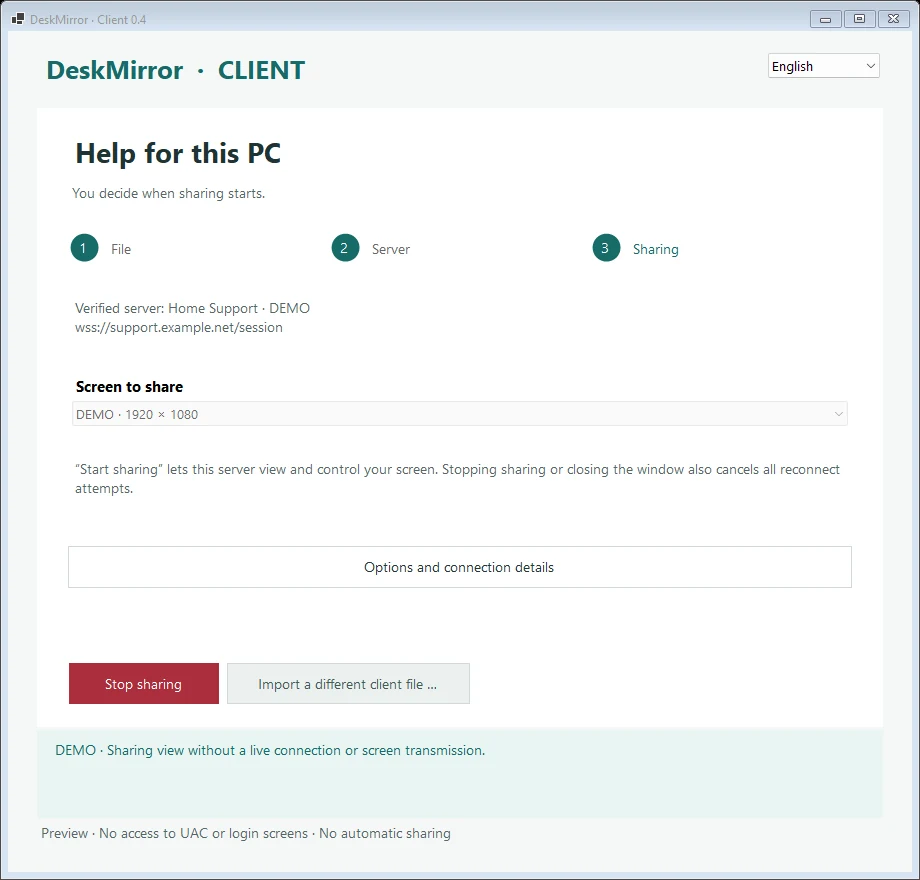
All screenshots show sample data. There is no live connection or screen sharing; addresses, monitor details and certificate fingerprint are demonstration values.
Behind the scenes
Built with AI, checked by people
Like every project in the AI Lab, DeskMirror is built with AI support — from the connection logic to the guided interface. The concept, security decisions and testing are in our hands.
For a remote help tool, what it deliberately does not do matters most: no access without a click on site, no credentials in the download, no hidden services.
☕ Support
Is DeskMirror useful to you?
DeskMirror is free to download. If you would like to support its development, you can buy me a coffee — entirely voluntary.
The link leads to Ko-fi, an external provider, whose privacy policy applies.
FAQ
Good to know
How much does DeskMirror cost?
Nothing. The preview is free, with no account and no subscription.
Does the connection run through a third-party server?
No. Server and remote PC connect directly with encryption. That is why the server has to be reachable from the internet.
Can anyone access my PC without consent?
No. Sharing only begins when someone at the remote PC clicks “Start sharing”, and ends with “Stop sharing” or by closing the window. The server also starts in view-only mode.
Where do I get the client file?
From the person who runs the server. They export a separate file for each remote PC and share it separately.
Why does Windows show a warning?
The applications are not yet digitally signed, so Windows shows a notice for unknown programs.
Which Windows versions are supported?
The preview is built for Windows 11 x64.